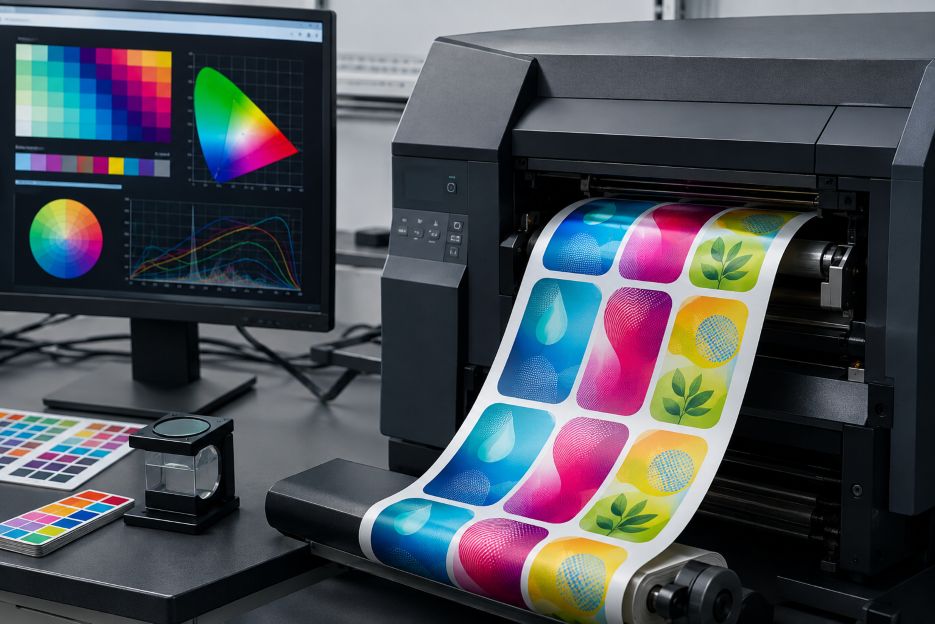
Computer monitors create color with red, green, and blue light, while inkjet printers reproduce color by placing ink on a physical surface. This basic difference means a design displayed on screen cannot automatically appear identical when printed. The Adobe color-management guide explains that conversion is required whenever documents move between different color models or device spaces.
For businesses producing product labels, the gap becomes especially important. Brand colors, photographs, warning graphics, and small design elements must remain recognizable across print runs. A suitable color inkjet label stock is part of that equation, but software settings, printer behavior, ink formulation, and the surface of the material all influence the final result.
Why Screen and Print Colors Disagree
A monitor emits light directly toward the viewer. Printed labels reflect light from their surroundings. Bright blues, greens, and other highly saturated colors that appear vivid on an RGB display may fall outside the range, or gamut, that a particular printer, ink set, and label material can reproduce.
The same digital values can also look different on separate monitors. Brightness settings, display age, room lighting, and calibration affect what an operator sees. The International Color Consortium developed an open profile system to help applications interpret device-dependent color consistently. Its framework does not make every device physically equal. Instead, it provides a standardized method for translating color information between devices.
The Case for ICC Profiles
An ICC profile describes how a device or defined printing condition handles color. A source profile identifies the color space of the artwork, while an output profile represents the printer’s reproducible range under specific conditions. The color-management system uses a device-independent profile connection space to translate between them, as outlined in the International Color Consortium’s profile documentation.
This approach supports predictable label production when the profile accurately represents the printer, ink, resolution, and media combination. A profile made for glossy coated stock may perform poorly on an uncoated matte label because the materials absorb and reflect ink differently. Adobe notes that output profiles should account for printing conditions, including both paper and ink.
Profiles also help software manage out-of-gamut colors through rendering intents. Relative colorimetric processing generally preserves colors within the destination gamut while adjusting those beyond it. Perceptual processing can shift a broader range of colors to preserve visual relationships. Neither method is universally correct. The appropriate choice depends on whether the job prioritizes measured brand colors, natural photographs, or overall visual balance.
Why Profiles Alone Are Not Enough
The counterargument is practical: an accurate profile cannot compensate for every production variable. Printheads can become partially blocked, ink density may drift, and label rolls from different batches can have slightly different white points or coatings. Changes in printer resolution, speed, or ink limits may also invalidate the conditions represented by an existing profile.
Double color management creates another common problem. If design software converts the artwork using one profile and the printer driver performs a second conversion, colors can shift unexpectedly. Conversely, disabling color management in both places may send unmanaged values to the printer. A controlled workflow therefore needs one clearly assigned point for color conversion.
What RIP Software Adds
A raster image processor, commonly called a RIP, translates page content into the raster data a printer can place on the label. Professional RIP applications may combine this processing with media calibration, ICC profile selection, spot-color libraries, ink limiting, screening, nesting, and job queues.
Fiery describes its RIP workflow as integrating printer support, media calibration, spot and process color controls, and output verification. These functions can give operators more control than a standard desktop printer driver, particularly when several jobs, materials, or printers must follow the same production rules.
Still, RIP software is not an automatic guarantee of accuracy. The selected media preset must match the loaded roll, embedded profiles must be interpreted correctly, and operators must avoid overriding settings without documenting the change. A sophisticated workflow using the wrong output profile can produce a less faithful label than a simpler driver configured correctly.
Soft Proofing and Physical Verification
Soft proofing uses the monitor to simulate how artwork may appear under a chosen output profile. It can reveal clipped colors, dull shadows, or changes caused by paper tone before material is consumed. However, the display should be calibrated, and the viewing application must support the profiles involved. Adobe confirms that soft-proof settings rely on both the selected proof profile and the active monitor profile.
A physical proof remains valuable because screens cannot reproduce texture, gloss, ink spread, or reflected light. Teams can support quality checks by plotting and analyzing measurement data collected from printed samples, making variations across materials or production runs easier to identify. Lighting matters as well. Two samples may appear similar under one lamp but different under another, a phenomenon associated with metamerism. Technical material from PRINTING United Alliance identifies ambient light and material layers as factors that can change perceived printed color.
Where Mismatches Most Commonly Occur
- Artwork is created or exported with a missing, incorrect, or ignored source profile.
- The output profile does not match the printer, ink, resolution, or label material.
- Both the design application and printer driver perform color conversion.
- The monitor is too bright, poorly calibrated, or viewed under unsuitable lighting.
- Spot colors are converted into process inks that cannot reproduce the original target.
- Printer maintenance, media batches, or environmental conditions change after profiling.
A Balanced Production Approach
Color-management software bridges the gap between screen and print, but it cannot remove the physical limits of ink, media, and reflected light. Reliable label output comes from treating profiles, RIP settings, calibrated displays, printer maintenance, and physical proofs as connected parts of one process. As printing conditions change, profiles and presets should be reviewed rather than treated as permanent. The goal is reasonable, repeatable agreement across production, supported by measurement and consistent operating choices.